Start here
How to Create a Blog for Free on Systeme.io That Sells (Website Tutorial)
Facts checked

Short answer
To create a blog on Systeme.io, go to Sites → Blogs → Create, name the blog, choose a domain, a URL path and a template, then add blog posts with a title, short description, URL path, image and categories, and click Activate to publish. To make the blog sell, build an inline form or popup form as a funnel step, copy its script into a Raw HTML element on your blog page, and link your posts to a funnel page that holds your offer.
Key facts
- Create a blog
- Sites → Blogs → Create (name, domain, URL path, template)
- Create a post
- Blog → Posts → Create, then edit the content and Activate
- Post fields
- Title, short description, URL path, image, categories
- SEO fields
- Title, description, keywords, author, social image, hide from search engines
- Email capture
- Inline form or popup form step, copied into a Raw HTML element
- Automatic extra
- An RSS feed is generated when the blog is created
Some links are affiliate links: if you upgrade to a paid plan, I may earn a commission at no extra cost to you.
Systeme.io tutorials: what you will build in this blog tutorial
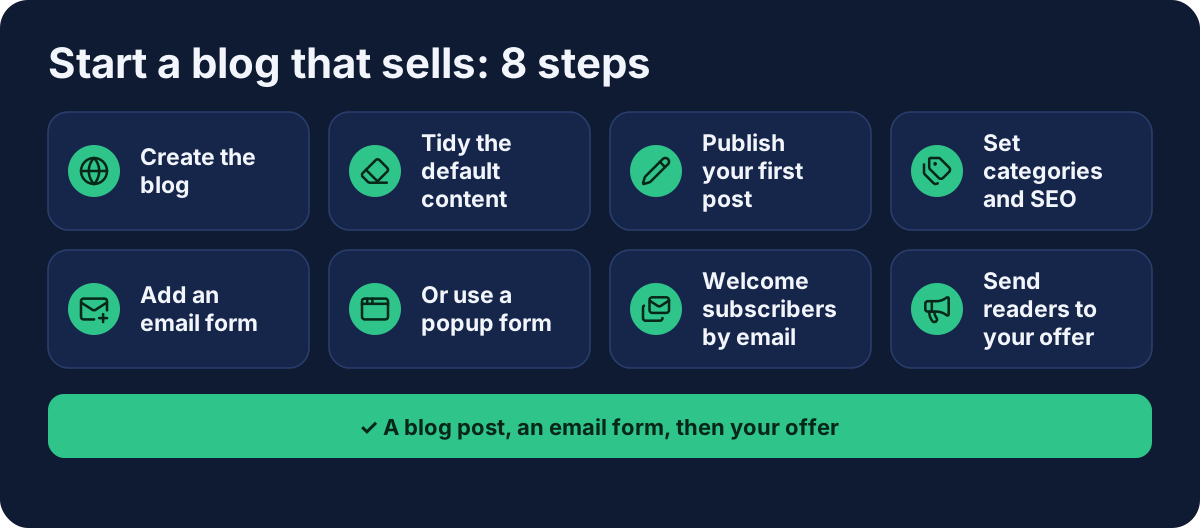
A blog on its own attracts readers. A blog that sells has two extra parts: a way to collect an email from each reader, and a clear path from a post to your offer. Systeme.io is an all-in-one marketing platform, so the blog builder sits in the same account as your funnels, email campaigns, courses and affiliate tools.
This tutorial suits an entrepreneur, coach or small business owner who wants a website blog that brings in customers, without paying for a separate blogging tool and email service. You can launch it from a free account, then automate the follow-up so you can send email to new subscribers and promote your online courses, webinars or affiliate links later.
I publish Systeme.io tutorials on my YouTube channel. This step-by-step tutorial follows the official help center. Where I add my own advice, I say so.
| Part | What it does |
|---|---|
| The blog | Your blog posts, categories and layout |
| SEO fields | Help search engines understand each post |
| Email form | Turns readers into subscribers |
| Link to your offer | Sends interested readers to a funnel page |
Create a free Systeme.io account (Systeme.io affiliate link) if you do not have one yet. The pricing page lists 1 blog with unlimited posts on the free plan, 5 on Startup, 20 on Webinar and unlimited on Unlimited. See the pricing page and my guide on whether Systeme.io is really free if you plan more.
Step 1: create the blog
Go to Sites, click Blogs, then Create. In the pop-up, enter a name, choose the blog domain, set the URL path and pick a template. Click Save. Open the blog by clicking its title. Under the Pages tab you will find the blog layout, a preview link (View blog) and Blog settings, where you can change the name, domain, URL path and language. An RSS feed is created automatically and updates with each new post.

The orange arrow shows where to click.
Step 2: tidy the default content
A new blog comes with default posts, pages and categories. You can edit or delete them with the three dots menu. The Home page and the Post list page cannot be deleted because the blog needs them.
Step 3: publish your first blog post
Open Posts and click Create. Fill in:
| Field | What to enter |
|---|---|
| Title | The post's headline |
| Short description | Shown on the blog listing pages |
| URL path | The post's address |
| Image | The main image, also shown on listings |
| Categories | One or more |

The orange arrow shows where to click.
Save, then click the post to write the content in the page editor. When you are done, open the three dots menu and choose Activate to display it on your blog.
Step 4: set categories and SEO
Categories live in the blog's Categories section. Three are created by default and can be renamed or deleted. A new category asks for a name, path, description and SEO fields. To put a post in a category, open the post's Settings and tick it.

The orange arrow shows where to click.
For the post itself, open Settings in the editor's left panel and scroll to Search Engine Optimization. You can set the title, description, keywords, author and a social media image, and you can hide the page from search engines.
Step 5: add an email form to your blog
Readers will not subscribe unless you ask. Build the form as a funnel step:
- In a funnel, click Add step and choose Inline Form. Pick a template and click Edit page.
- Add at least one Form input and set its type, for example email. Set what the button does, and save.
- Back in the step configuration, click Script and Copy link to clipboard.
- Open your blog page in the editor and drag a Raw HTML element onto it.
- In its settings click Edit code, paste the link, save, then save the page.
The form now appears on your blog page.
Step 6: or use a popup form
Create a Popup Form step the same way. It can appear automatically after a delay you set in seconds, or when a reader clicks a text link. For the click version, open the popup's configuration, click Create a Link, choose the clickable text, copy the code and paste it into a Raw HTML element.
Step 7: welcome new subscribers with an email campaign
A form only collects emails. To send something back, create an email campaign and an automation rule that subscribes new contacts to it. You can also assign a tag to each new contact so you know which article brought them in, which makes it easier to automate your marketing later. Systeme.io lets you build websites, sell online courses, run webinars and manage affiliates from the same account, so one workflow can cover the whole customer journey. My guide to email automation shows the steps, and my guide to creating a lead magnet helps you choose what to offer for the sign-up.
Step 8: send readers to your offer
This part is my own suggestion. In each post, add a clear button or link to a funnel page that holds your offer, such as a digital product, an online course or a booking page. I did not find an official guide for putting a checkout directly inside a blog post, so linking to a funnel page is the safest route. My guide to building a sales funnel shows how to set one up, and my guide to selling digital products without Shopify covers the product side.
What other creators add
After going through several blog tutorials on YouTube, a few practical points came up that the help center does not stress. One walkthrough is a few years old, so the screens may look different today. Treat these as ideas to check in your own account:
- Rename the default categories first. The creator replaced the sample categories with ones that fit his business, such as digital marketing, then relinked the category links in the blog layout editor so the header and footer matched.
- Set up the layout once. He edited the blog layout (logo, alignment, footer text and contact details) and used the mobile preview icon to see how the website looks on a phone.
- Use a featured image of at least 200 pixels wide. He said smaller images were a problem.
- Customise the home page. He swapped the default image carousel for a single image and wrote a clear page title so visitors know the blog's topic at a glance.
- Use a popup opt-in. He built a popup form with name and email fields, opened it from a Subscribe button, and also set it to appear on exit intent for desktop and after a time delay for phone visitors. He suggested about 50 seconds.
- Change the subdomain. In the account settings, he replaced the default subdomain with a name that matches the blog.
What reviewers say about blogging on Systeme.io
Reading third-party reviews, a few points about the blog builder came up. These are other people's views, not tests I have run:
- Everything in one account. Reviewers praise having the blog, the email list and the sales funnels together.
- SEO options are basic. One reviewer describes the blog's SEO as limited to titles, descriptions and URLs, without schema markup or a sitemap tool. The help center confirms the fields listed in Step 4, so compare them with your needs.
- Limited templates. One reviewer notes a small choice of blog templates.
- Moving a blog can be hard. One user wrote that a promised migration of their existing blog content did not happen, so plan on copying posts across yourself.
Tips for every blog article
Each article you publish should give readers easy access to your sign-up form, with a consistent layout and clear visibility for the button. These are my own suggestions, not from the help center:
- Write for one reader. A post that answers one question well beats a vague overview.
- Match each post to one offer. A post about email tips can point to your email course.
- Use the same few categories. Fewer, clearer categories are easier for readers to browse.
- Check posts on a phone. Most readers will not be on a laptop.
Mistakes to avoid
- Forgetting to activate the post. A saved post stays hidden until you click Activate.
- Skipping the Script step. The Raw HTML element needs the copied link from the form step.
- Not saving the blog page. Save changes in the editor before you leave.
- No welcome email. Subscribers who hear nothing forget you.
- Leaving default posts live. Replace or delete them before you share the blog.
Related guides
- How to create a lead magnet
- Email automation for solopreneurs
- How to build a sales funnel from scratch
- Systeme.io pricing
- Is Systeme.io really free?
Get started
Open a Systeme.io account (Systeme.io affiliate link), create your blog and publish your first post this week.
Frequently asked questions
Can I create a blog for free?
Yes. The Systeme.io free plan includes 1 blog with unlimited posts and 1 custom domain (pricing page, checked October 2026).
How do I create a blog on Systeme.io?
Go to Sites, click Blogs, then Create. Enter a name, choose the blog domain, set the URL path and pick a template, then save. Open the blog by clicking its title to reach the layout, the blog settings and your blog posts.
How do I publish a blog post on Systeme.io?
Open your blog, go to Posts and click Create. Fill in the title, short description, URL path, image and categories, then save. Edit the post to write the content, and use the three dots menu and Activate to display it on your blog.
How do I add an email sign-up form to my blog?
Create an Inline Form step in a funnel, open the step configuration, click Script and copy the link. In the blog page editor, drag in a Raw HTML element, click Edit code and paste it. Save the page before leaving.
Where do I set SEO for a blog post?
In the editor, open Settings in the left panel and scroll to the Search Engine Optimization section. It includes title, description, keywords, author, a social media image and an option to hide the page from search engines.
Can I sell a product directly inside a blog post?
I did not find an official guide for placing a checkout inside a blog post. The safe route is to link from the post to a funnel page that holds your offer.
Is Systeme.io good for blogging?
It works well if you want a blog connected to your email list, funnels and courses in one account. Some reviewers describe its blog and page SEO options as basic, so check the SEO fields it offers against what you need before you commit.