Start here
How to Create a Sales Funnel From Scratch for Free (Step by Step)
Facts checked
Short answer
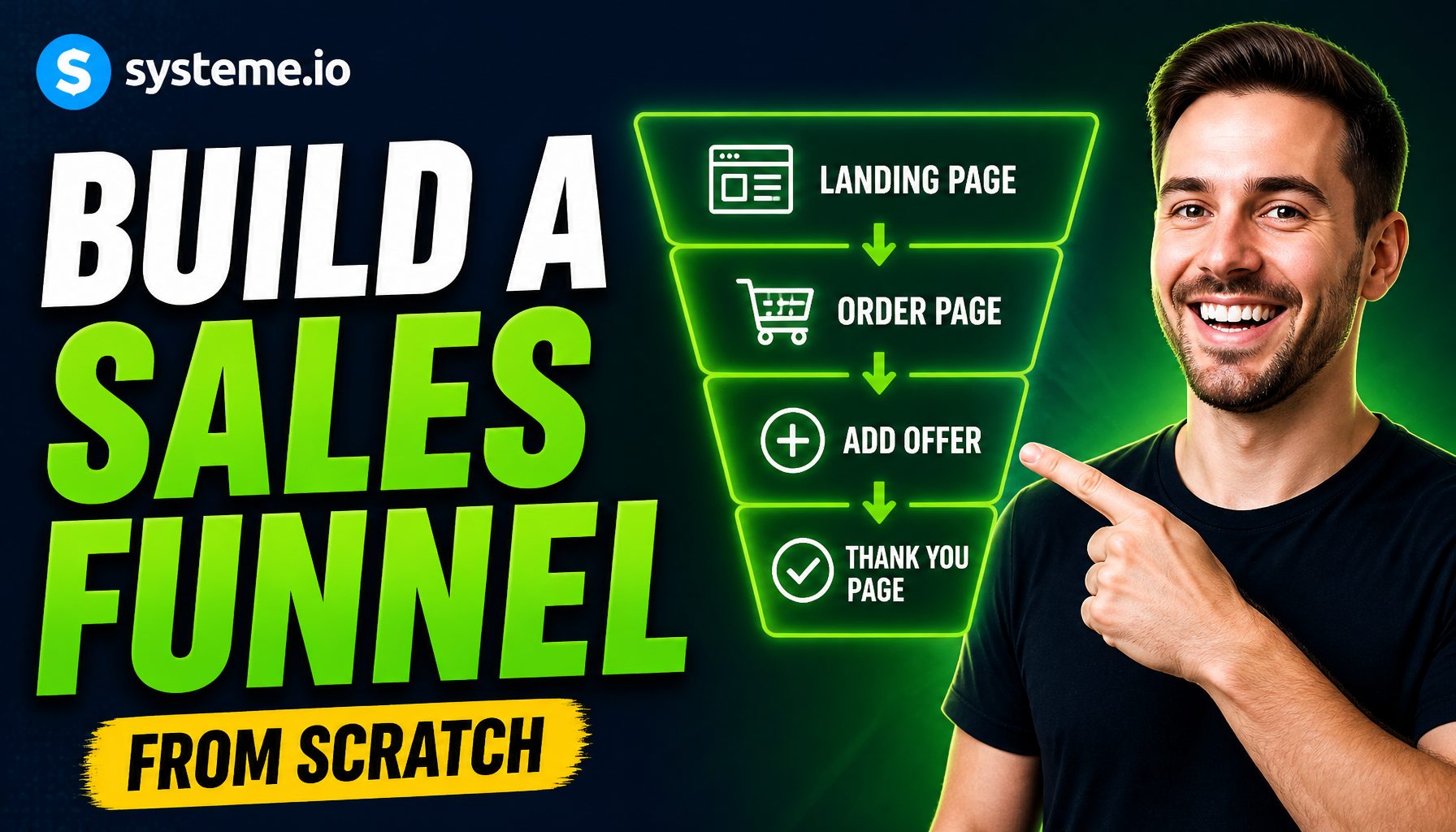
In Systeme.io you go to Sites, then Sales funnels, then Create, and pick one of four funnel types: Build an Audience, Sell, Custom, or Run an evergreen webinar. A Sell funnel already comes with an order form and a thank-you page. From there you add steps (an upsell, a downsell), attach a product to each page, and edit the pages from a template. The free plan includes 3 funnels.
Key facts
- Where to start
- Sites → Sales funnels → Create
- Funnel types
- Build an Audience, Sell, Custom, Evergreen webinar
- Sell funnel starts with
- Order form + thank-you page
- Funnels on the free plan
- 3
- Webinar funnel
- Webinar and Unlimited plans only
- Upsell and downsell charges
- Separate transactions
Some links are affiliate links: if you upgrade to a paid plan, I may earn a commission at no extra cost to you.
What is a sales funnel, and how to build a sales funnel that works
A sales funnel is a short path of pages that moves a visitor toward one action: join your list, or buy. In Systeme.io each page is a "step", and you can build the whole path in one place, with no separate page builder or checkout tool.
The help center says to use a funnel when your main goal is direct sales, when you need a landing page for a campaign, or when you want a simple site of up to 5 pages. For regular articles and SEO it points you to the blog feature instead.
I make Systeme.io tutorials on my YouTube channel, and this is the order I would follow if I were starting today.
What you need
| Item | Needed? |
|---|---|
| A Systeme.io account (the free plan works to start) | Yes |
| One product or offer to sell, or a freebie to give away | Yes |
| A domain | Optional, you choose one when you create the funnel |
| A way to get paid (set up in your account) | Yes, for the Sell funnel |
Create a free Systeme.io account (this is a Systeme.io affiliate link) if you do not have one yet.
Step 1: choose the funnel type
Go to Sites, click Sales funnels, then Create. Enter a name, pick your domain and choose the currency. Then pick one of four types:
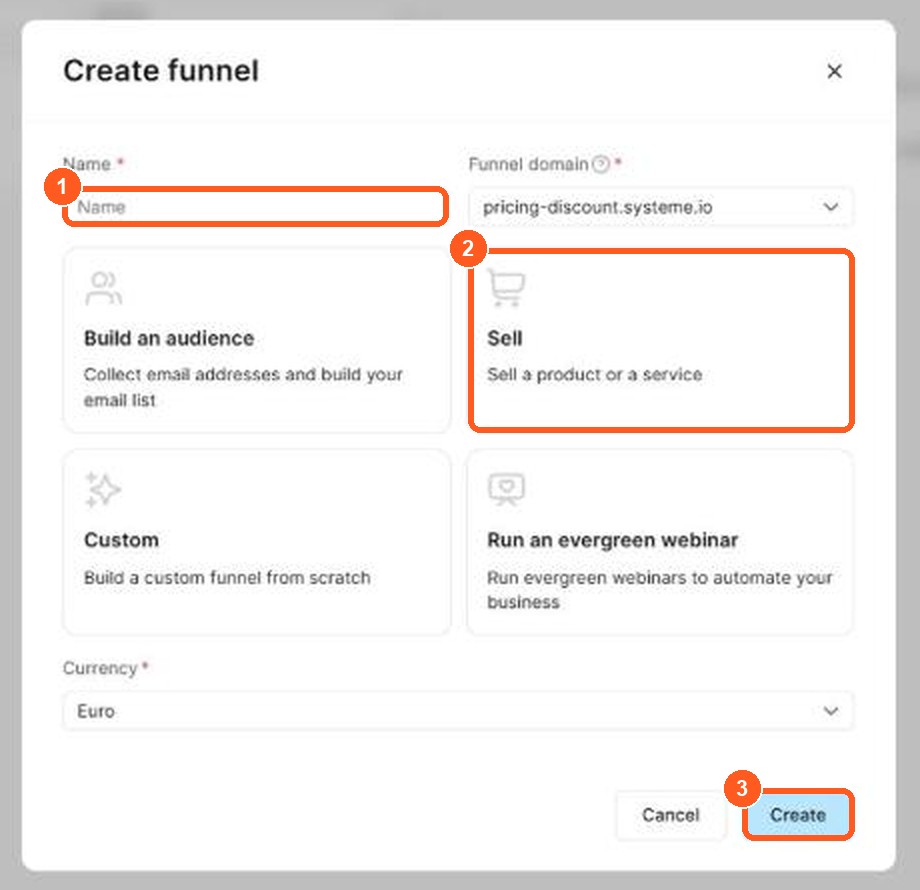
The orange numbers show what to click, in the same order as the steps.
| Type | What it starts with | Use it for |
|---|---|---|
| Build an Audience | Opt-in page + thank-you page | Growing your email list |
| Sell | Order form + thank-you page | Selling a product |
| Custom | A blank canvas | Experienced builders who want full control |
| Run an evergreen webinar | A 3-page structure | Selling through a webinar (Webinar and Unlimited plans only) |
If you are not sure, start with Sell for a product, or Build an Audience for a free guide. My guide on creating a lead magnet covers the second one.
Step 2: add the steps you need
Open the funnel and click Add step in the left menu. A funnel can mix page types, so a simple selling path often looks like this:
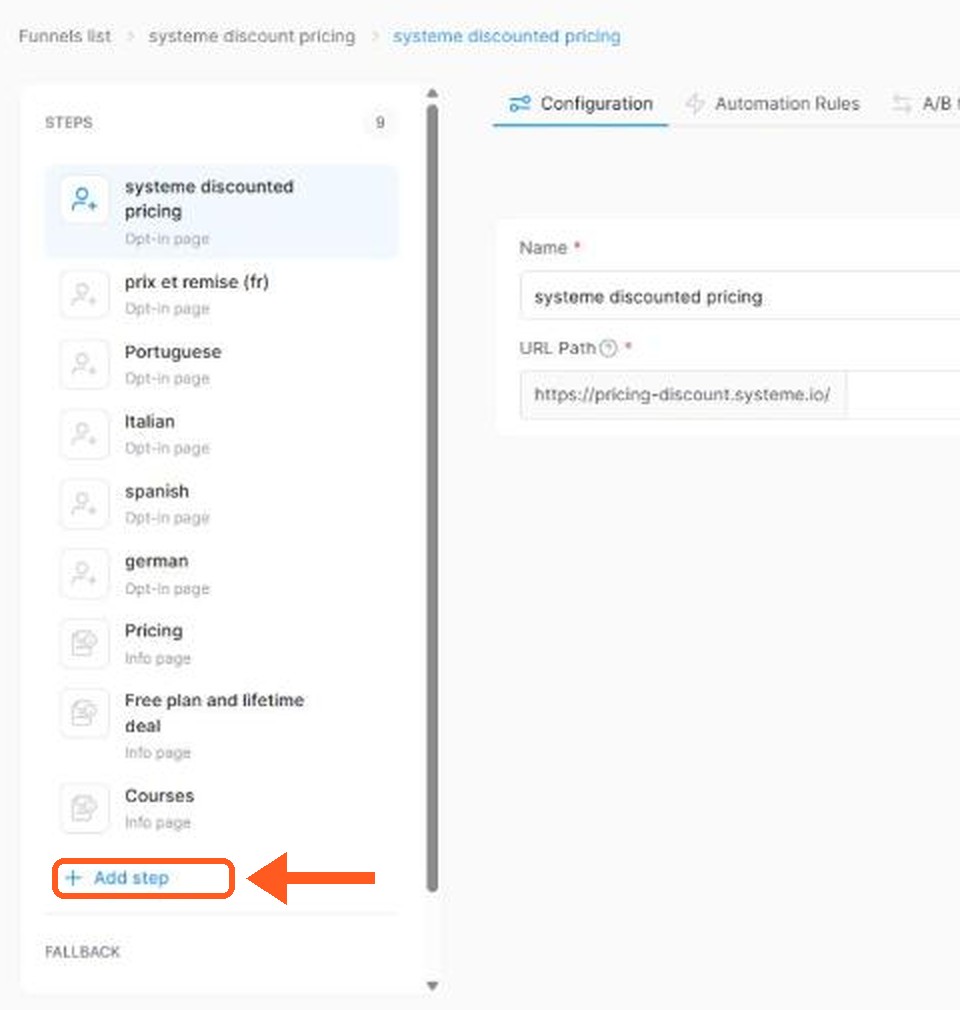
The orange arrow shows where to click.
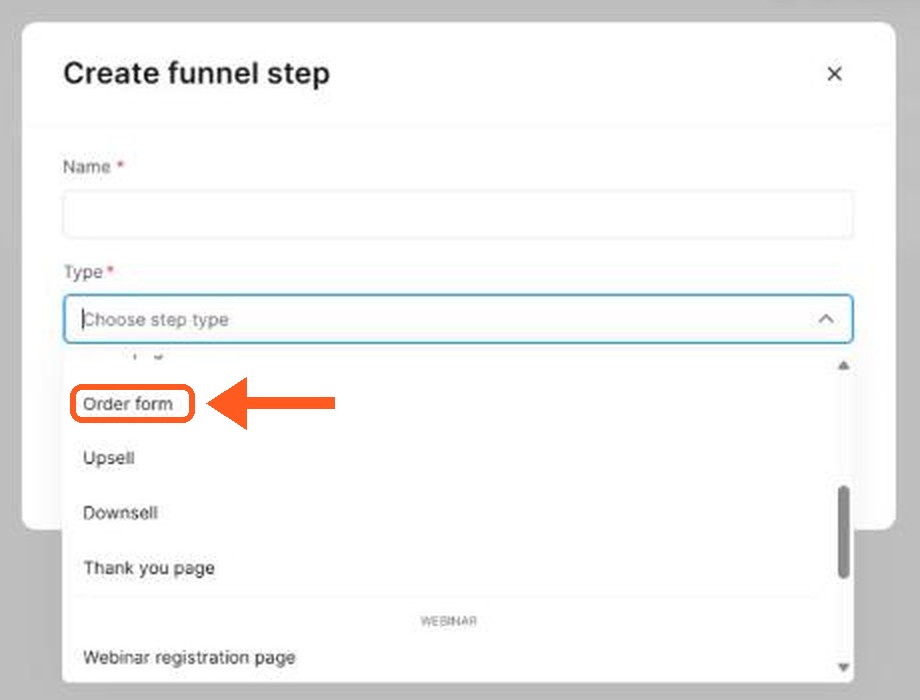
The orange arrow shows where to click.
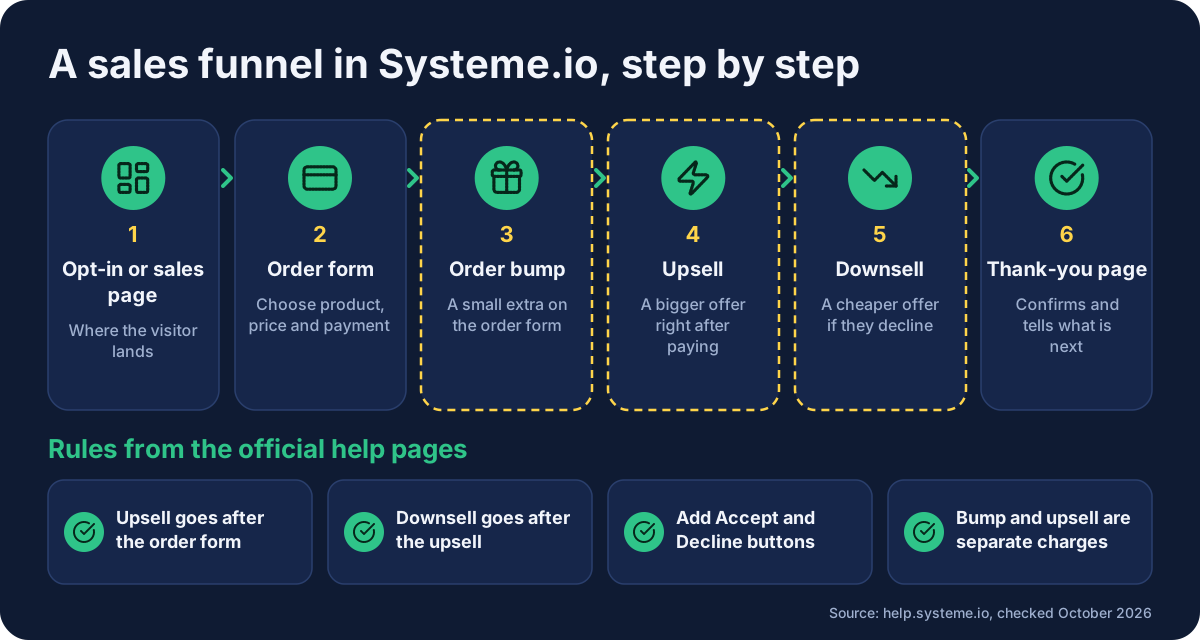
opt-in or sales page → order form (with an order bump) → upsell → downsell → thank-you page
You do not need every step. A first funnel with an order form and a thank-you page is already complete.
Step 3: pick a template and edit the page
For each step, choose a template or start from scratch, then click Edit page to change the layout, text and design. Click save before you leave the editor. If you want a deeper walk-through of the page itself, see how to build a landing page for free.
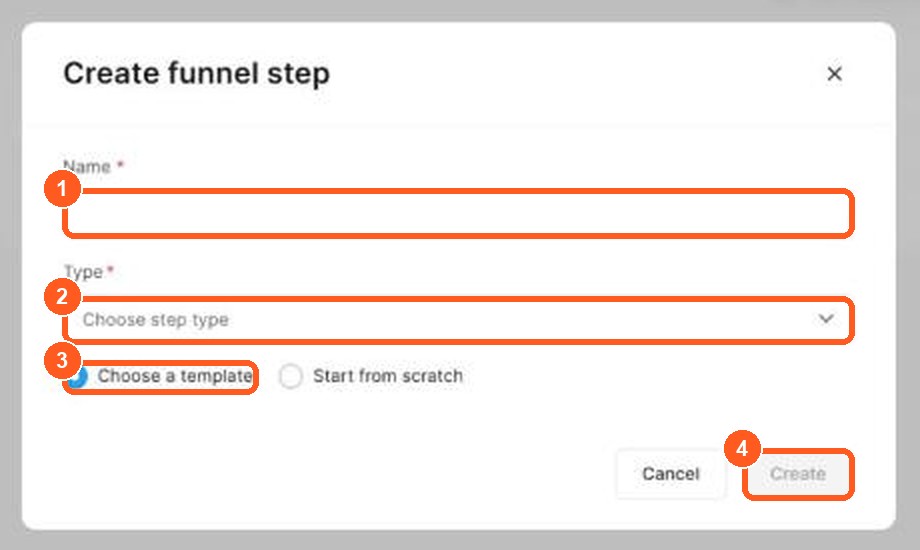
The orange numbers show what to click, in the same order as the steps.
Step 4: attach what you are selling
On the order form, choose the offer type, Digital product or Physical product. For a digital product you then choose what the buyer gets after paying. The help center lists four options:
- A course: access is granted automatically after payment.
- A course bundle: access to several courses.
- A tag: the buyer gets a tag you chose, useful for automations.
- A community: access to a community space.
You also add a price plan to the page. For physical products, the help center notes that delivery is handled outside Systeme.io.
Step 5: add an order bump
An order bump is a small extra offered on the order form, before the customer pays.
- Open the order form and click Add order bump.
- Choose Physical product or Digital product, then the resource the buyer receives.
- Add a single price to the bump.
- Open the page editor and drag the Order bump element onto the page, otherwise it will not show.
Tip from the help center: to email buyers after they take the bump, give it a tag as its resource, then build an automation rule with the trigger "Tag assigned".
Step 6: add an upsell and a downsell
An upsell is a separate offer shown after the main order form. A downsell is a cheaper fallback shown if they decline.
- Click Add step and choose Upsell or Downsell as the type.
- Pick a template, then click Edit page.
- Choose the product the same way as in Step 4.
- In the page editor, add Accept and Decline buttons so the customer can choose.
Two rules from the official page: the upsell must come after the main order form, and the downsell must come after the upsell. You also cannot sell a calendar event on an upsell or downsell page.
What other creators say
After watching several tutorials and walkthroughs, a few points came up again and again. In my view they are worth keeping in mind:
- Templates save the most time. Creators start from a ready-made template and change the text, rather than building from scratch.
- Save before you leave the editor. Several walkthroughs repeat this because it is easy to forget.
- You do not need a course to deliver a small bonus. One creator pointed out that a simple PDF or bonus can be delivered by email, using a tag and an automation, instead of creating a course.
- Check your bump actually shows. A few creators suggest refreshing the page after creating an order bump and confirming it appears on the order page.
- The free plan has limits on automation. Creators mention that the free plan includes very few automation rules, so plan which one you will use before you build. Check the current limits on the Systeme.io pricing page.
I could not confirm from the official pricing page which plan an order bump or upsell needs, so check that before you plan a funnel around them.
Mistakes to avoid
- Too many steps for a first funnel. Start with an order form and a thank-you page, then add one step at a time.
- Forgetting the Accept and Decline buttons. Without them an upsell page does nothing.
- Putting the upsell before the order form. It will not work in that order.
- Skipping a test. Click through your own funnel before you send traffic to it.
- Expecting one single charge. An accepted bump, upsell or downsell is a separate transaction, so a buyer can see more than one payment.
Sales funnel stages: top, middle and bottom of the funnel
Marketers describe the customer journey as a funnel with three sales funnel stages. Knowing them helps you decide which step to build first when you create a sales funnel.
| Stage of the sales funnel | What the potential customer is thinking | Typical step in Systeme.io |
|---|---|---|
| Top of the funnel | "I have a problem and I am looking for answers" | A blog post, a video or a free opt-in page |
| Middle of the funnel | "I am comparing options and I want to trust you" | A welcome email sequence, a webinar, a free guide |
| Bottom of the funnel | "I am ready to make a purchase" | A sales page, an order form, an order bump and an upsell |
A marketing funnel that skips a stage usually leaks. A cold visitor who lands straight on an order form has had no time to build trust. A subscriber who never receives an email after the opt-in forgets you. The simplest effective sales funnel for a beginner has one opt-in step at the top, a short email sequence in the middle and one offer at the bottom.
In Systeme.io you do not need a different tool for each stage. The funnel builder handles the pages, the email campaign handles the nurturing, and the order form handles the purchase. My guide to email automation shows how to connect the middle stage, and my guide to creating a lead magnet covers the top.
How to tell if your sales funnel works
A sales funnel that works is one where enough visitors move from one step to the next. The number to watch is the conversion rate: the share of visitors who take the action on a page. If 100 people see your opt-in page and 5 sign up, the conversion rate is 5%.
These are my own suggestions, not from the help center:
- Find the weakest step first. Compare how many people reach each page. The biggest drop is the step to optimize.
- Change one thing at a time. If you change the headline, the image and the price together, you will not know which change helped.
- Give it enough visitors before you judge. A page with 10 visitors tells you very little.
- Keep the sales process simple. One page, one action. Extra links give visitors a reason to leave.
- Write for one product or service. A funnel that sells one clear thing is easier to fix than one that sells several.
Systeme.io has a free plan rather than a free trial, so you can build the whole sales funnel for your business and test it before you pay for anything. Check my guide to the Systeme.io pricing for what each plan includes.
Related guides
- How to sell an online course for free
- How to build a landing page for free
- How to start an email list
- How to sell digital products without Shopify
- Systeme.io pricing
Start with a free account
Open a free Systeme.io account (this is a Systeme.io affiliate link), create a Sell funnel, and publish your first order form this week.
Frequently asked questions
What is a sales funnel in Systeme.io?
It is a series of pages a visitor moves through, for example an opt-in page, an order form and a thank-you page. Each page is a step you can edit from a template.
Can I create a sales funnel for free?
Yes. The Systeme.io free plan includes 3 sales funnels with up to 15 steps, 1 order bump and 1 one-click upsell, with 0% transaction fees (pricing page, checked October 2026). The evergreen webinar funnel needs the Webinar or Unlimited plan.
What is the difference between an order bump and an upsell?
An order bump is added on the order form, before the customer pays. An upsell is a separate page that comes after the main order form. A downsell follows the upsell.
Does the customer pay once or several times?
The official help pages say an accepted upsell, downsell or order bump is processed as a separate transaction from the main order.
Do I need a funnel or a blog?
The help center says to use a funnel for direct sales, landing pages and simple sites of up to 5 pages, and a blog for regular articles and SEO.
Sources
- How to create a funnel (Systeme.io help center) (checked )
- How to create an upsell and a downsell (Systeme.io help center) (checked )
- How to add an order bump to an order form/payment page (Systeme.io help center) (checked )
- When to use the sales funnel feature and the blog feature (Systeme.io help center) (checked )
- Systeme.io pricing (checked )