Start here
How to Run an Evergreen Webinar on Autopilot
Facts checked
Short answer
In Systeme.io go to Sites, then Sales funnels, then Create, and choose "Run an evergreen webinar". You get three pages: registration, thank-you and broadcast. You add time slots to the registration page, put your pre-recorded video on the broadcast page, and send reminder emails. It needs the Webinar or Unlimited plan, and it cannot run live webinars.
Key facts
- Where to start
- Sites → Sales funnels → Create → Run an evergreen webinar
- Pages you get
- Registration, thank-you and broadcast
- Plans that include it
- Webinar and Unlimited
- Live webinars
- Not supported, only automated ones
- Webinar pages per funnel
- One
- Fixed calendar date
- Not possible, visitors see sessions for today
Some links are affiliate links: if you upgrade to a paid plan, I may earn a commission at no extra cost to you.
What an evergreen webinar is, and who it suits
An evergreen webinar is a pre-recorded talk that plays on a schedule your visitors choose, so it feels live but runs without you. In Systeme.io it is a funnel type with three ready-made pages: registration, thank-you and broadcast.
The official help page is clear about one limit: Systeme.io does not run live webinars. If you want chat, questions and a live host, you need a separate live tool. If you want a talk that sells while you sleep, this is the right feature.
I publish Systeme.io tutorials on my YouTube channel. After going through several webinar tutorials from other creators, this is the order I would follow.
What you need
| Item | Needed? |
|---|---|
| A Systeme.io account on the Webinar or Unlimited plan | Yes, the free plan does not include it |
| A finished video of your talk | Yes, recorded before you start |
| An offer to present at the end | Yes, a product, course or booking |
| A way to get paid | Yes, if you sell on the page |
Check the current limits on the Systeme.io pricing page before you commit. If you are still on the free plan, my guide to selling a course for free shows what it covers.
Create a Systeme.io account (Systeme.io affiliate link) if you do not have one yet.
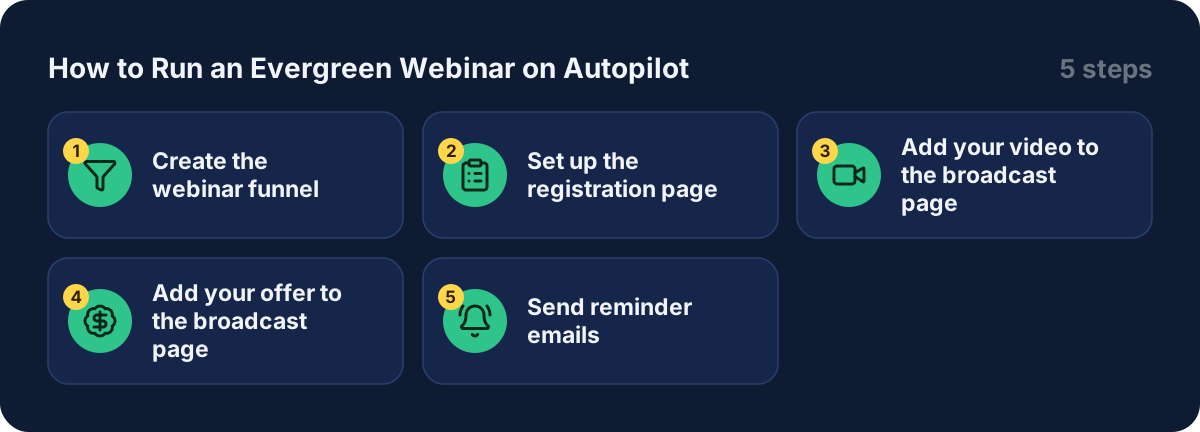
Step 1: create the webinar funnel
Click Sites, then Sales funnels, then Create. Give the funnel a name, choose your domain and currency, and pick Run an evergreen webinar. Click save.
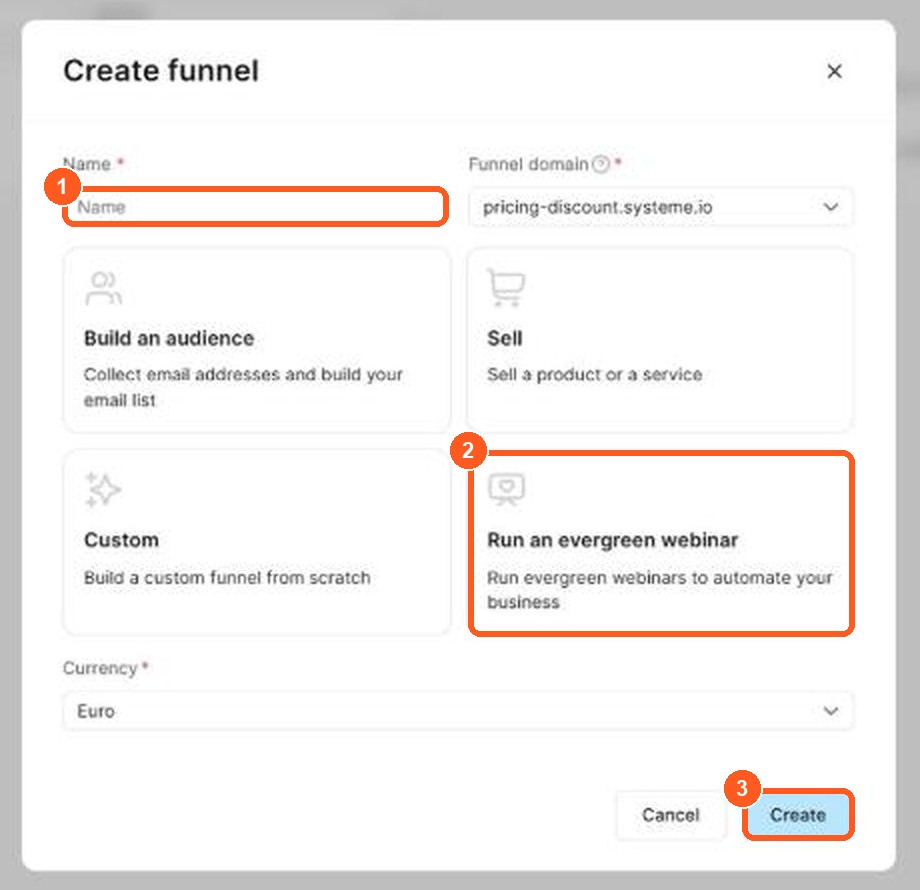
The orange numbers show what to click, in the same order as the steps.
You get three pages by default:
| Page | What it does |
|---|---|
| Registration | The visitor enters their details and picks a time |
| Thank-you | Shows the visitor their personal webinar link |
| Broadcast | Counts down, then plays your video |
The thank-you and broadcast pages will not open if you paste their links into a browser. They only appear after someone registers. You can preview them inside the editor.
Step 2: set up the registration page
Choose a template for the registration page and click Edit page. Add a popup with the sign-up form, then open Edit popup settings. The official page says the webinar registration date element is mandatory, so click it and set its options.
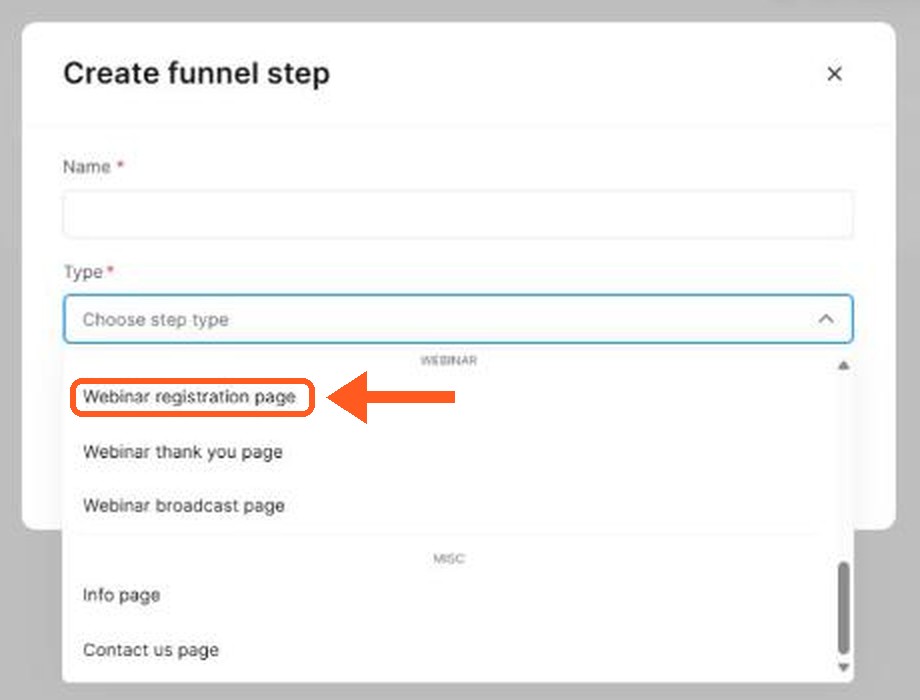
The orange arrow shows where to click.
Here you add your time slots. You choose times, not days, because visitors only see sessions for the day they arrive. A fixed calendar date is not possible.
Step 3: add your video to the broadcast page
Open the broadcast page and click Edit page. The creators I watched use the webinar session video element. They add a direct link, for example from YouTube or Vimeo, or upload a file from their device. Several of them suggest uploading the file, because it tends to play more smoothly.
Set the webinar length to match your video. The countdown on the broadcast page runs to the time the visitor chose, then the video starts like a live event. A visitor who arrives late joins part way in.
Step 4: add your offer to the broadcast page
This is where the webinar earns money. Several creators suggest hiding the offer at first and showing it at the point in the video where you make your pitch, with a countdown for urgency. They do this by adding a delay in seconds to a row on the page, for example 40 minutes into the video.
Then link the offer:
- Create a new funnel step and choose Order form.
- Pick the course, product or other resource the buyer gets after paying.
- Add a price and save.
- Put a button on the broadcast page that links to that order form.
If you sell on another site, you can link straight to it instead. My guide to building a sales funnel explains the order form, bump and upsell steps in detail.
Step 5: send reminder emails
The registration page has an Emails tab that other funnel pages do not have. You pick an event, such as registration or the webinar starting, and a delay, then write the email. Creators use it for a thank-you after sign-up, a reminder before the start and a follow-up after.
To give each person their own webinar link, use the available substitutes at the bottom of the editor instead of pasting the broadcast URL. The substitute turns into that person's real link when the email is sent. Sign-ups also join your list, so my guide on starting an email list is a useful next read.
What other creators say
After going through several tutorials and demonstrations, a few points came up again and again. In my view these are worth remembering:
- It is not a live webinar tool. Creators repeat that you record the talk first and the page makes it feel live. Do not promise live questions.
- Match the length to your video. The webinar length setting is meant to mirror the real runtime so late arrivals see only the part still playing.
- Hide the offer until the pitch. Showing the price too early gives people a reason to leave before you have built the case.
- Make the pages match. One creator pointed out that the default webinar pages do not share one style, so change colours and fonts to keep them consistent.
- Test before you send traffic. Register with a test email and walk through every page.
I could not confirm from the official page how many time slots you can add. Check this in the editor before planning your schedule.
Mistakes to avoid
- Promising a live event. The feature is automated only.
- Skipping the registration date element. The official page says it is mandatory.
- Pasting the broadcast link in emails. Use the available substitutes so each person gets their own link.
- A long video with no offer timing. Decide in advance when the offer appears.
- Planning around a fixed date. Only sessions for the day the visitor arrives are shown.
Evergreen webinars vs live sessions: webinar platform and webinar software
An evergreen webinar is a recorded presentation that plays on demand, so people can watch it any time. Automated webinars feel like a live session because you set the schedule, but you record once and the webinar runs by itself. A live webinar needs you present each time, and tools such as Zoom are built for that.
| Evergreen (on-demand) webinar | Live webinar | |
|---|---|---|
| Your time | Record once | Present every time |
| When people join | Any time | At a fixed time |
| Live questions | Limited | Yes |
| Best for | A steady flow of leads | Launches and Q&A |
When you compare a webinar platform or evergreen webinar software, check whether it can host the recording, send automated email sequences before and after the event, and take payment on the page. Systeme.io has a webinar plan priced at $47 a month, but it does not do everything a dedicated tool does, so compare before you buy. Evergreen content like this works well after you have a lead magnet. My guide to creating a lead magnet and my guide to email automation for solopreneurs show the two pieces that surround the webinar.
Related guides
- How to build a sales funnel from scratch
- How to sell an online course for free
- How to start an email list
- Systeme.io pricing
- Is Systeme.io really free?
Get started
Open a Systeme.io account (Systeme.io affiliate link), upgrade when you are ready for webinars, and record your first talk this week.
Frequently asked questions
Can I run a live webinar in Systeme.io?
No. The official help page says Systeme.io currently supports only automated (evergreen) webinars. You record the video once and it plays at the time slot each visitor picks.
Which plan do I need for an automated webinar?
The official help page says you need the Webinar plan or the Unlimited plan. The free plan does not include it.
Can I set a specific date, like 5 October?
No. The help page says a fixed calendar date is not possible. Visitors only see the sessions available on the day they visit, for example Today at 2:00 PM.
Can I have more than one webinar page in a funnel?
No. A funnel can hold one webinar page. You can add a button that links to the sign-up page of a different funnel.
Why can't I open my thank-you or broadcast page from its link?
Those pages are only visible after a lead has registered. You can still preview them inside the page editor.
Sources
- How to create automated webinars (Systeme.io help center) (checked )
- Systeme.io pricing (checked )