Start here
How to Build a Membership Site for Free Without Coding
Facts checked

Short answer
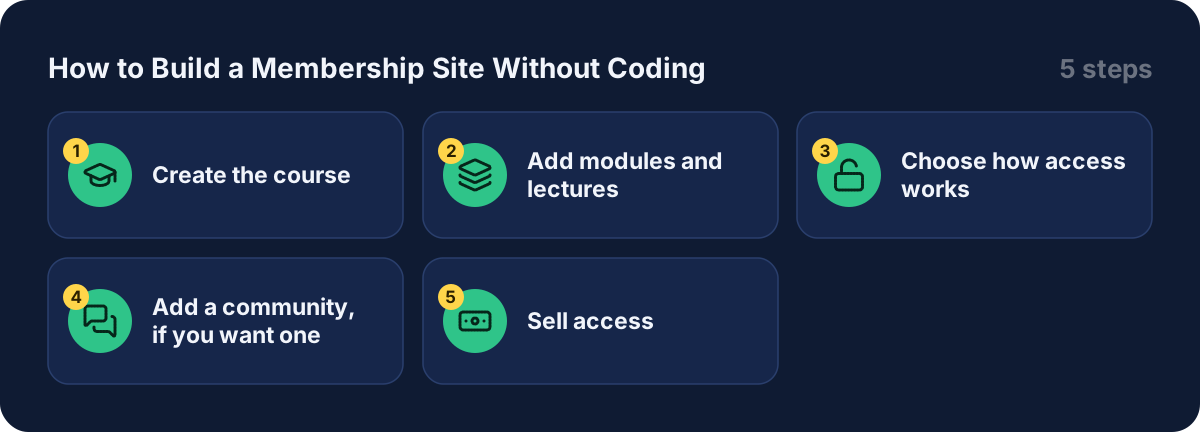
In Systeme.io a membership site is a course, a community, or both. For a course, go to Assets, then Courses, add a course, then add modules and lectures. For a community, go to Assets, then Communities, then Create. You then sell access by adding the course or community as a resource on an order form, and automation rules can add or remove members for you.
Key facts
- Course setup
- Assets → Courses → Add a new course → modules → lectures
- Community setup
- Assets → Communities → Create
- Course access types
- Full, drip, partial, partial with drip
- Community types
- Private (invite only) or public (anyone can join)
- Invitations expire after
- 7 days
- Free plan
- 1 course (checked on the pricing page)
Some links are affiliate links: if you upgrade to a paid plan, I may earn a commission at no extra cost to you.
What a membership site is, and what you need
A membership site is a private area where people log in to reach what they paid for or signed up for. You do not need a website builder, a plugin or code. In Systeme.io you build it from a course, a community, or both, and the login, the student library and the access emails are built in.
I publish Systeme.io tutorials on my YouTube channel. After going through several membership tutorials from other creators, this is the order I would follow.
| Item | Needed? |
|---|---|
| A Systeme.io account (the free plan lists 1 course) | Yes |
| Your content: videos, text, files | Yes |
| A price and a way to get paid | Yes, if you charge for access |
| A domain | Optional, you pick one when you create the course |
Create a Systeme.io account (Systeme.io affiliate link) if you do not have one yet. Plan limits change, so check the Systeme.io pricing page before you plan around a number.
Step 1: create the course
Go to Assets, then Courses, then Add a new course. Fill in a name, a domain, a URL path and pick a theme, then save. You can change these later.
Creators I watched also add a logo, which shows in the top menu, and an image that shows in the student library. Take a minute to set both, because members see them every time they log in.
Step 2: add modules and lectures
Click Add module and name it. Inside the module, click Add lecture. For each lecture you set:
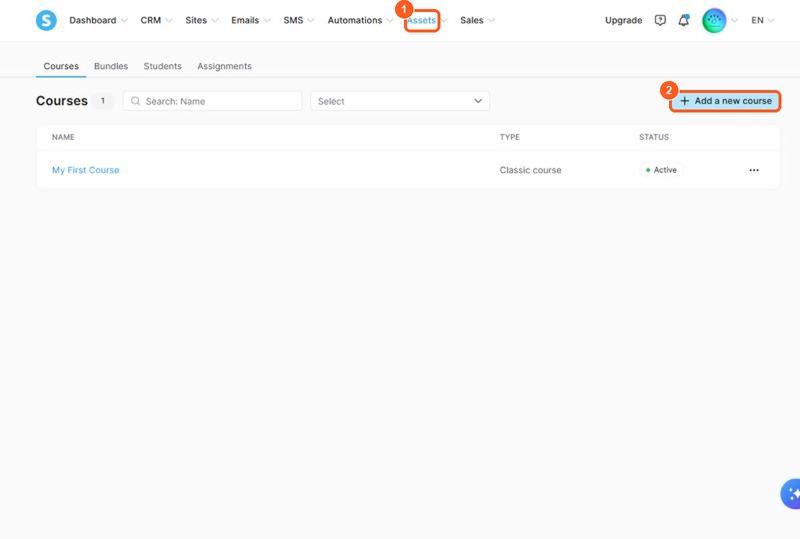
The orange numbers show what to click, in the same order as the steps.
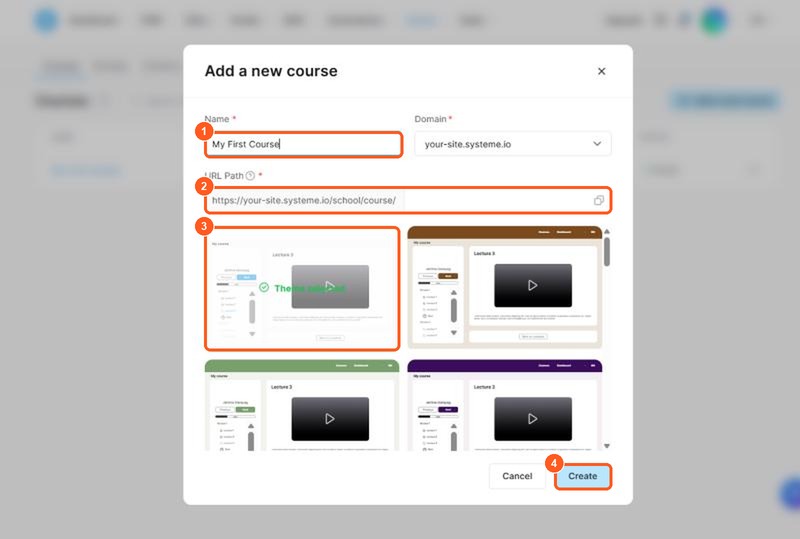
The orange numbers show what to click, in the same order as the steps.
- the name
- a delay after the previous lecture
- whether students can comment
- a page template
Then open the lecture in the page editor and add your video and a list of resources. Once the modules and lectures are ready, activate them, because new content is not visible to students until you do. Duplicating or moving a lecture also sets the copy to inactive.
A time saver several creators mention: build one good lecture, duplicate it, then change the title, video and resources for the next one. The official page confirms that duplicating a module copies all of its lectures.
Step 3: choose how access works
The official help page names four access types:
| Access type | What the student gets |
|---|---|
| Full access | Every lecture at once, delays ignored |
| Drip content | Lectures unlock one by one using your delays |
| Partial access | Only the modules you select |
| Partial access with drip | Selected modules, unlocking step by step |
The delay is counted from the previous lecture, not from the start of the course. A 7-day delay unlocks the lecture 7 days after the student got the one before it.
One creator showed a useful setup: offer two prices on the sales page, one for the whole course at once and one for the dripped version. I think this is a good way to test what your audience prefers.
Step 4: add a community, if you want one
Go to Assets, then Communities, then Create. Enter a name, a domain, a URL path and choose whether posts are approved automatically or moderated by you. Save.
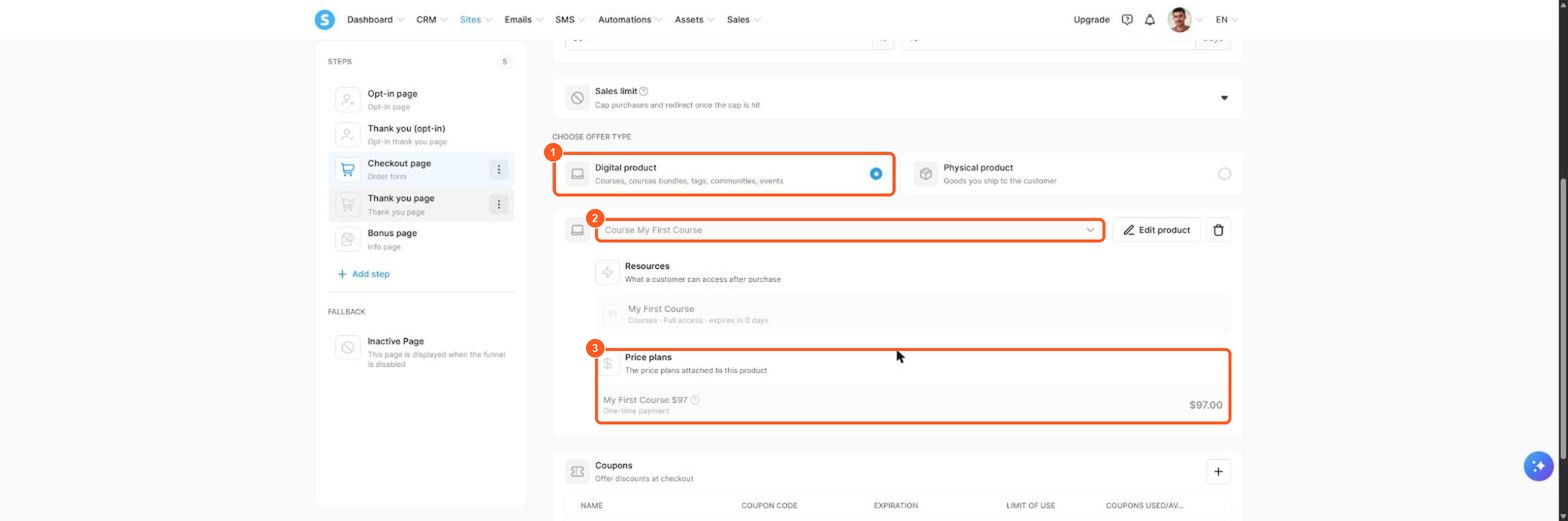
The orange numbers show what to click, in the same order as the steps.
The dashboard has tabs for Home, Search, Members, Settings, Scheduled posts and Topics. In the settings you choose:
- Private: only members you invite can join.
- Public: anyone can join after signing up.
Invitations expire after 7 days. You can invite people in bulk by pasting a list of email addresses. Members can post and comment, and owners and moderators can pin posts.
Step 5: sell access
Add the course or community as a resource on the order form of a sales funnel, and access is granted automatically after payment. The student gets an automatic email to log in. For the full funnel, see my guide to building a sales funnel.
For free access, the official page suggests an opt-in page with an automation rule that uses the trigger "Funnel step form subscribed" and the action "Enroll in course". My guide to selling an online course for free walks through the whole setup.
You can also add members in bulk with a tag: create a tag, make an automation rule that enrolls people when the tag is added, then assign the tag to your contacts. The same idea works for adding or removing community members. For communities, automations only fire once the person has accepted the invite and finished onboarding.
What other creators say
After going through several tutorials and demonstrations, a few points came up again and again. In my view these are worth remembering:
- Build the structure first. Creators create the course, then modules, then lectures, before they think about the sales page.
- Set the look early. The theme colour, logo and library image make the site feel like yours from day one.
- Duplicate instead of rebuilding. Copy one finished lecture and edit it.
- Decide on drip early. Delays set in the course interact with the access type you choose on the sales page.
- Check the emails. Students receive an automatic email to log in, so test the full path with your own address.
I could not confirm from the official pages how many communities each plan allows. Check the pricing page before you plan more than one.
Mistakes to avoid
- Forgetting to activate. New or duplicated modules and lectures stay inactive until you switch them on.
- Expecting full access with drip delays. Full access ignores the delay.
- Treating an invite as a member. Automations only fire after the person accepts and finishes onboarding.
- Moving content between course types. Content can only move between courses of the same type, and moving resets progress and access rules.
- Skipping the test. Buy or enroll as a test student before you send real traffic.
Best membership website options: WordPress plugin vs all-in-one platform
You can create a membership site in two main ways. A WordPress membership plugin adds member areas to a website you host yourself, which gives you control but means more setup, updates and security work. An all-in-one membership platform, such as Systeme.io, keeps the website builder, the payment and the member area in one tool, with no code.
| WordPress membership plugin | All-in-one membership platform | |
|---|---|---|
| Setup | Hosting, theme and plugin | One account |
| Maintenance | You update and secure it | The platform does |
| Cost | Plugin plus hosting | One plan |
| Control | High | Moderate |
Before you start a membership site, decide on your membership model: one paid membership with a monthly fee, or several membership levels with different content. Start with one level. A paid membership works when members get something they cannot get free, such as lessons, templates or a private community. To pick the best membership option, check whether the tool handles recurring payments, content access and a website builder together. My guide to building a sales funnel from scratch shows how to sell the membership, and my guide to Systeme.io pricing shows what each plan includes.
Related guides
- How to sell an online course for free
- How to build a sales funnel from scratch
- How to sell digital products without Shopify
- Systeme.io pricing
- Is Systeme.io really free?
Get started
Open a Systeme.io account (Systeme.io affiliate link), create your first course and add one lecture this week.
Frequently asked questions
Can I create a membership website for free?
Yes. The Systeme.io free plan includes 1 course with up to 500 students and 1 community with unlimited members, and it charges 0% transaction fees when you sell access (pricing page, checked October 2026).
What is a membership site in Systeme.io?
It is a members-only area where people log in to reach your content. In Systeme.io that is a course, a community, or both, each with its own domain and URL path.
How do I give people access after they pay?
Set the resources on the order form in your sales funnel. The official help page says access is granted automatically after the purchase and the student gets an email to log in.
What is the difference between full access and drip content?
Full access unlocks every lecture at once and ignores any delay. Drip content unlocks lectures one after another based on the delay you set between them.
Is the community public or private?
You choose in the community settings. A private community is open only to members you invite, and a public community lets anyone join after signing up.
Can the same person get access to a course and a community?
Yes. The official pages describe them as separate assets, and automation rules can add a member to either one, for example when a tag is added.