Start here
Coaching Scheduling Software: Create a Booking Page That Takes Payments
Facts checked
Short answer
In Systeme.io you build a paid booking page in three parts. First create a calendar event under CRM → Calendar and set your availability. Then create an order form page, add a digital product whose resource is that calendar event, and attach a price plan. Finally drag the Paid calendar element onto the page. Visitors pick a time slot, enter their details, pay, and land on your thank-you page.
Key facts
- Event type
- Individual (one person per slot) or Group (several people per slot)
- Where events live
- CRM → Calendar → Create new event
- Location options
- Online meeting (Zoom, Google Meet or custom link), phone, in person
- Paid booking page
- Funnel step of type Order form with the Paid calendar element
- Product setup
- Digital product with a Calendar events resource and a price plan
- Default reminders
- 24 hours and 1 hour before, up to 3 per event, none under 10 minutes
Some links are affiliate links: if you upgrade to a paid plan, I may earn a commission at no extra cost to you.
What a paid booking page does
Without a booking page, selling a coaching call means a chain of messages: "when are you free?", an invoice, a reminder. A paid booking page replaces all of it. The client sees your open times, picks one, pays, and gets a confirmation.
I publish Systeme.io tutorials on my YouTube channel. After going through the official guides and several creator tutorials, this is the order I would build it in.
| Part | What it is |
|---|---|
| Calendar event | The call itself: length, hours, location |
| Order form page | The page that takes the payment |
| Digital product + price plan | Links the event to a price |
| Paid calendar element | The widget visitors use to pick a time |
| Thank-you page and emails | Confirmation and reminders |
Create a Systeme.io account (Systeme.io affiliate link) if you do not have one. You will also need a payment method connected for your account.
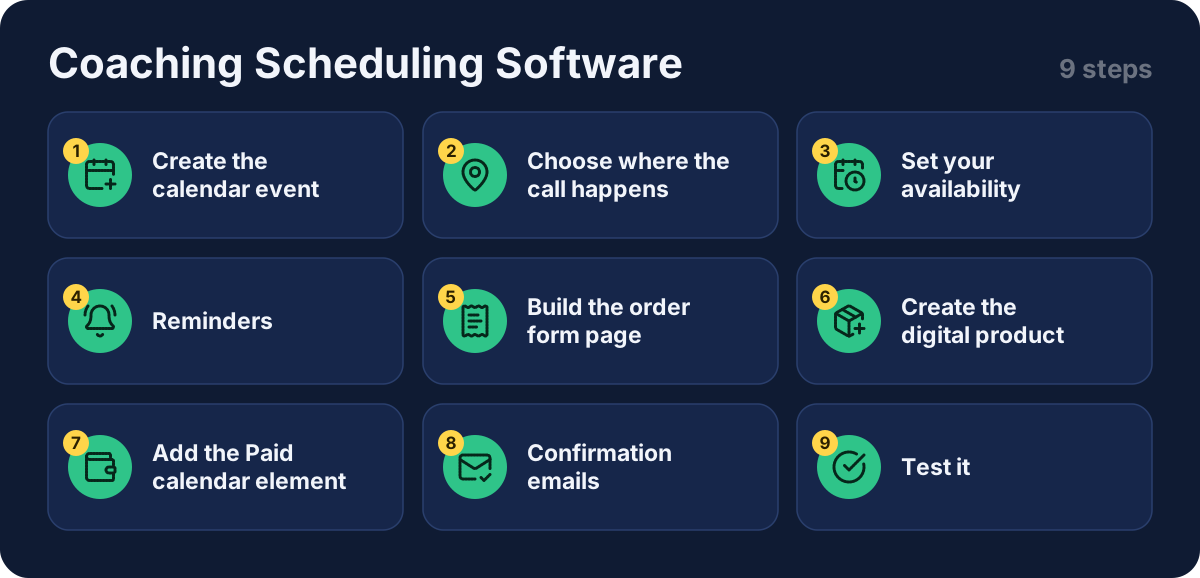
Step 1: create the calendar event
Go to CRM, then Calendar, and open the Events tab. Click Create new event and choose the type:
| Type | Use it for |
|---|---|
| Individual | One-to-one coaching, consultations, discovery calls |
| Group | Workshops, classes, live sessions |
Then fill in the basics: event name, host name, duration and host photo. You can also upload a custom logo that replaces the default Systeme.io logo in the booking emails.
Step 2: choose where the call happens
The location can be an online meeting, a phone call or an in-person meeting. For online, pick Zoom or Google Meet (set up the integration first) or paste your own link. You can offer several options and let the client choose. For group events, set a maximum number of participants that does not exceed your meeting tool's limit.
Step 3: set your availability
Decide how far ahead people can book: indefinitely, a number of days ahead, or within a date range. Then set:
- Minimum notice, for example 2 hours.
- Cancellation deadline, for example 24 hours before.
- Available hours for each weekday, or your global availability.
- Date-specific hours for one-off extra slots.
Under advanced settings you can set the start-time increment (every 15 minutes, say), a daily booking limit, buffer time between calls, and whether times show in your time zone or the guest's.
Step 4: reminders
New events include two reminders by default: 24 hours and 1 hour before. You can have up to 3 reminders per event, none closer than 10 minutes to the start. The reminder text is generated by the system and cannot be edited.
Step 5: build the order form page
Open Sites, then Sales funnels, and create a funnel (or open one). Click Add step, choose the type Order form, pick a template and click Edit page. You can put a sales page before it and a thank-you page after it.
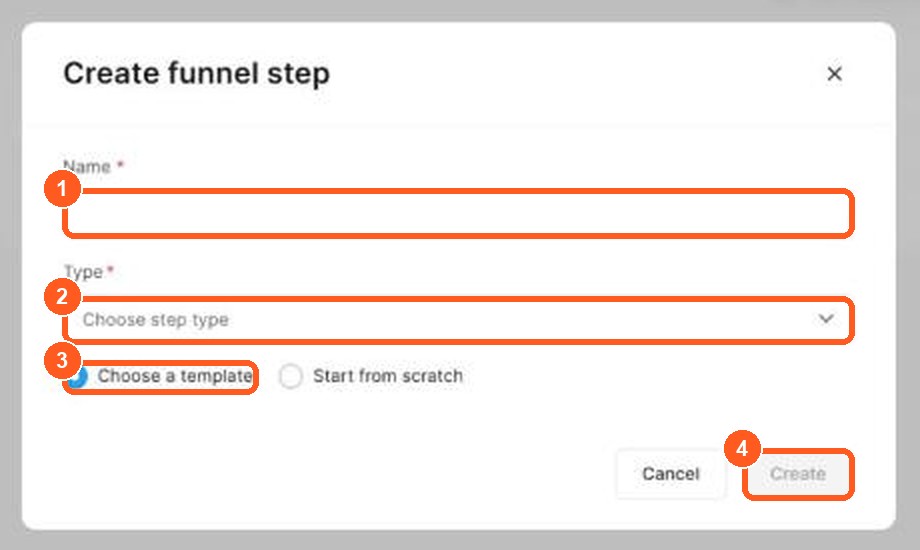
The orange numbers show what to click, in the same order as the steps.
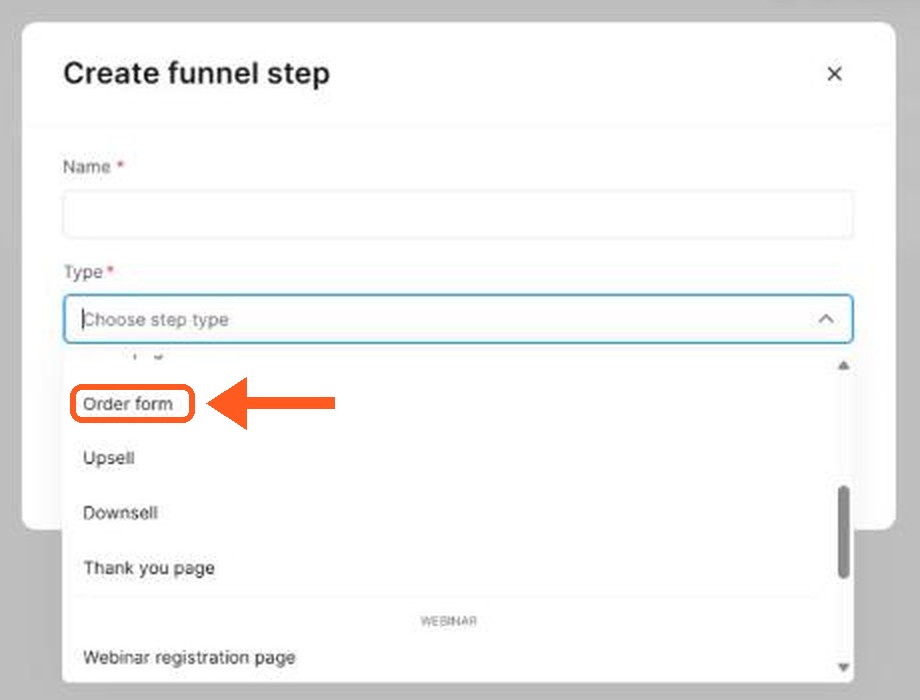
The orange arrow shows where to click.
Step 6: create the digital product
On the order form's configuration page, scroll to Choose offer type and select Digital product. Name it, click the + to add a resource, choose Calendar events and select your event. Then set up a price plan and click Save. The plan can be a single payment, and creators also show subscriptions and payment plans on the same page.
Step 7: add the Paid calendar element
Click Edit page. In the left panel find the Paid calendar element and drag it onto the page. It creates two steps for the visitor:
| Step | What happens |
|---|---|
| 1. Calendar | The visitor sees open dates and picks a time slot |
| 2. Form | They enter name and email, then pay |
You can edit the headline, sub-headline and button text of each step, and choose 12-hour or 24-hour time. Save before you leave the editor, and check the page in mobile view.
Step 8: confirmation emails
Both you and the client receive a booking confirmation and reminder emails. One setting is easy to miss: by default the confirmation goes out as soon as the payment starts, even if the payment fails. To change that, go to Settings, then Notifications, then Sales, and enable sending the booking confirmation only after payment is completed.
For your own follow-up, a creator I watched added an automation rule with the trigger New sale, then actions to subscribe the buyer to a campaign and add a tag. My guide to email automation shows how.
Step 9: test it
Open the live page, book a slot and pay with a real small amount or a test mode if your payment provider offers one. Check the thank-you page, both confirmation emails and that the booking appears in your calendar. If you turned on the Google Calendar option, it should appear there too.
What other creators say
After going through several tutorials, a few points came up again and again. In my view these are worth remembering:
- Pair it with a sales page. A short page that explains the call, then a button to the booking page, tends to work better than a bare calendar.
- Use buffer time. Back-to-back calls leave no space to prepare.
- Set a cancellation deadline. It protects your time.
- Collect only what you need. Name, email and maybe a phone number keep the form short.
- Tag buyers. It makes later follow-up easier.
I could not confirm from the pricing page which plans include the booking calendar, or whether a limit applies. Check the Systeme.io pricing page first.
Mistakes to avoid
- Putting the Paid calendar on a regular page. It belongs on an order form page.
- Forgetting the price plan. Save the product and the plan before editing the page.
- Leaving the confirmation setting on default. Failed payments can still trigger a confirmation.
- Group size above your meeting limit. Keep it at or under your Zoom or Google Meet cap.
- Skipping the test booking. Always book once yourself.
Scheduling software for coaches: Calendly, Acuity Scheduling or a built-in booking platform
A coach needs three things from scheduling software: a way for a client to book a coaching session, a way to collect payment at booking, and a way to remind both people. Tools such as Calendly and Acuity Scheduling are popular scheduling tools, but they often send people to a separate payment tool. A built-in option keeps everything in one place.
| What to check | Why it matters |
|---|---|
| Booking link | One link a client can open to pick a time |
| Payment collection | Take payment at booking so you are not chasing invoices |
| Intake form | Ask the questions you need before the session |
| Reminders | Fewer no-shows |
| Free trial or free plan | Lets you test before paying |
I have not compared every booking platform in detail, so check each tool's own pricing page.
Group coaching and group sessions need a booking system that lets several coaching clients take the same slot and shows each person the right time zone. A customizable booking page with multiple service options lets a client choose between a discovery call and a longer coaching session, and it should carry your brand, so a coach booking feels like part of your own coaching platform.
How a coach can schedule and run a coaching business
Keep your coaching schedule simple. Offer a few fixed time slots, one clear price per coaching session, and one intake form. When a client books, they should see the price, pay, and get a confirmation email with the time and the meeting link. This setup works for a small coaching practice and for a growing coaching business.
After the session, send a short follow-up email and offer the next booking. My guide to email automation for solopreneurs shows how to send those emails automatically.
Related guides
- Sell digital products without Shopify
- Email automation for solopreneurs
- How to build a sales funnel from scratch
- Systeme.io pricing
- Is Systeme.io really free?
Get started
Open a Systeme.io account (Systeme.io affiliate link), create your first event and publish a booking page this week.
Frequently asked questions
What is the difference between an individual and a group event?
An individual event can be booked by one person per time slot, which suits one-to-one coaching and discovery calls. A group event lets several people book the same slot, which suits workshops and classes. For group events you also set a maximum number of participants.
Where do I put the calendar to take payments?
On an order form or payment page in a funnel, using the Paid calendar element. The help center says paid bookings must be placed on an order form, while free bookings go on a regular page.
Can I stop confirmation emails going out before payment?
Yes. By default the booking confirmation is sent as soon as the payment starts, even if it later fails. In Settings → Notifications → Sales you can enable sending it only after payment is completed.
Do I need Zoom or Google Meet?
No. For an online meeting you can use Zoom, Google Meet or paste your own meeting link. You can also offer a phone call or an in-person meeting, and even give attendees several options.
Is the booking calendar included in the free plan?
I could not confirm from the pricing page which plans include the booking calendar. Check the pricing page and your own account before you plan around it.
Sources
- How to set up your calendar events (Systeme.io help center) (checked )
- How to sell your calendar bookings (Systeme.io help center) (checked )
- Systeme.io pricing (checked )