Start here
Free Quiz Funnel Builder: How to Build a Quiz Funnel That Grows Your Email List
Facts checked
Short answer
In Systeme.io a quiz funnel is built with the Survey element on a funnel page. You write the questions, give each answer a tag, and the final step collects the visitor's email. Because every answer adds a tag to the contact, you can then use automation rules to send each person the follow-up that fits their answers. Answers are saved in the contact's record under Surveys.
Key facts
- Element
- Survey, dragged from the left panel of the page editor
- Works on
- Pages in sales funnels and blogs (not directly inside courses)
- Per answer
- Optional tag; open-ended answers cannot be tagged
- Final step
- Email field is required; it links the answers to the contact
- Where answers appear
- CRM → Contacts → open the contact → Surveys section
- Follow-up
- Automation rule with the trigger Tag added
Some links are affiliate links: if you upgrade to a paid plan, I may earn a commission at no extra cost to you.
Why a quiz can beat a plain sign-up form
A plain opt-in form asks for an email in exchange for a download. A quiz asks a few easy questions first. People like to answer questions about themselves, and you learn something useful about each subscriber before you ever write to them.
I publish Systeme.io tutorials on my YouTube channel. The official help center has no step-by-step quiz-funnel guide, so this article builds the quiz from the Survey element it does document, and the parts below are labelled as the official steps or my own suggestions.
| Part | What it does |
|---|---|
| Survey questions | Ask something short and easy to answer |
| Tag on each answer | Marks which answer the contact picked |
| Final step | Collects the email and saves the answers |
| Automation rule | Sends a follow-up based on the tag |
Create a Systeme.io account (Systeme.io affiliate link) if you do not have one yet.
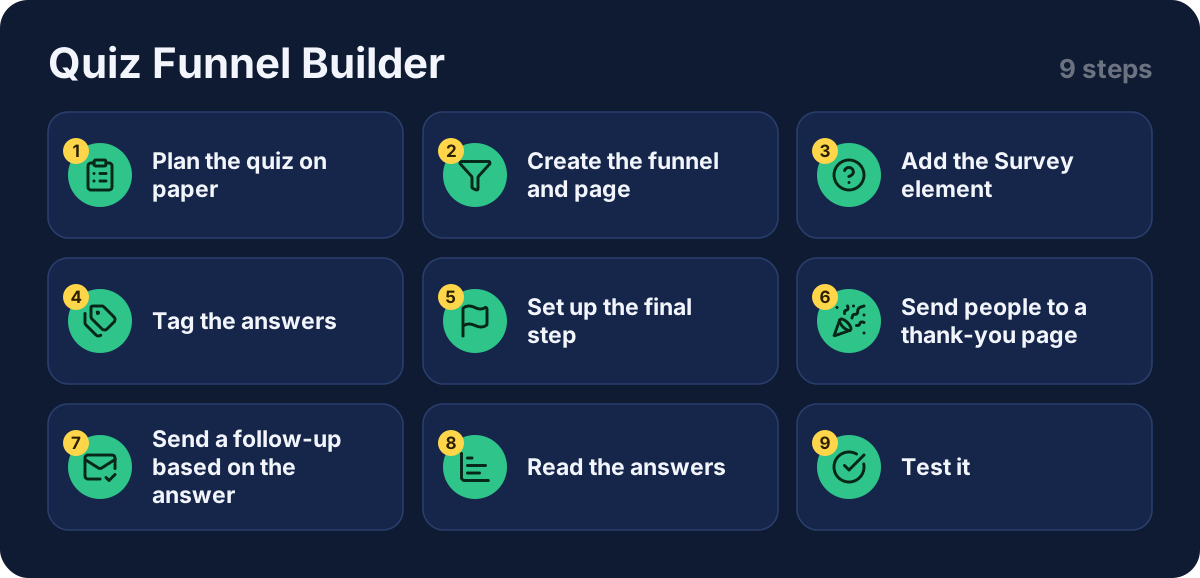
Step 1: plan the quiz on paper
This step is my suggestion. Before you open the editor, decide what you want to learn. Three to five questions is usually enough. Each question should have two to four answers that lead to different follow-up emails. For example:
| Question | Answers |
|---|---|
| What is your biggest challenge right now? | Getting traffic / Getting sales / Staying organized |
| How long have you been selling online? | Not started / Under a year / Over a year |
Each answer can later carry a tag, so write the tag names down too.
Step 2: create the funnel and page
Go to Sites, then Sales funnels, then Create. Name the funnel, choose the goal Build an audience, set the currency and save. Open the opt-in page and click Edit page. The survey only works on pages inside a sales funnel or on a blog.
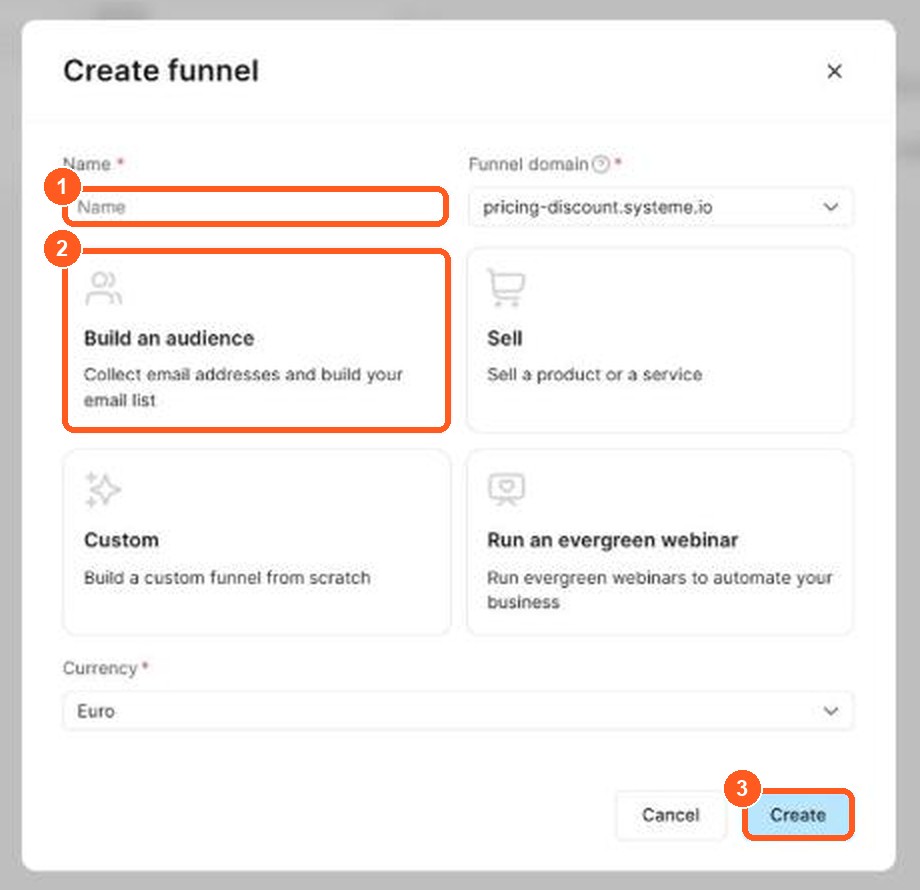
The orange numbers show what to click, in the same order as the steps.
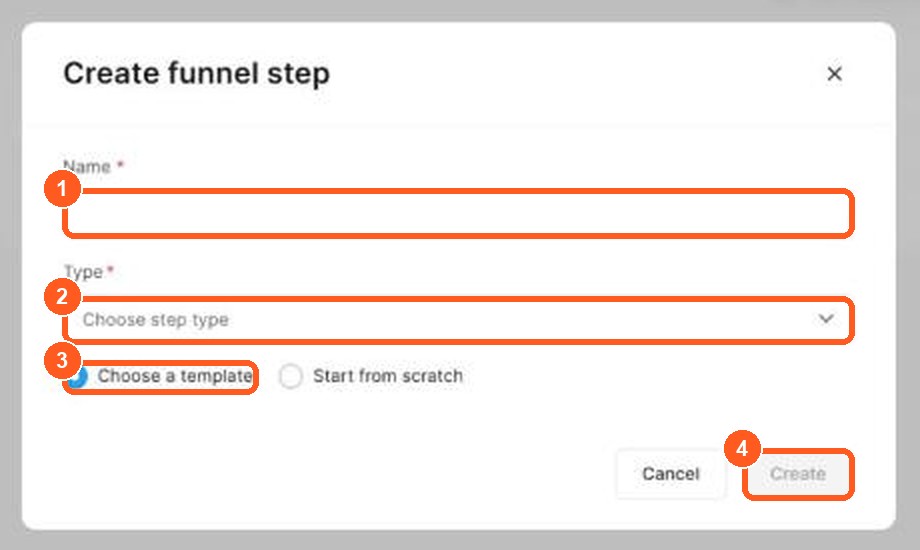
The orange numbers show what to click, in the same order as the steps.
Step 3: add the Survey element
In the page editor, drag the Survey element from the left panel onto your page. Click its settings icon, then Edit survey questions. In the window that opens you can:
- change a question by clicking it
- add a question with Add question
- delete a question with the trash icon
- reorder questions with the arrow icon
You can add as many questions as you like. Each question can have a subtitle and several answers, added with Add answer.
Step 4: tag the answers
For each answer there is a tag field. Choose a tag, or leave it empty if that answer does not need one. If you want people to type their own reply, tick Open-ended answer, but note that open-ended answers cannot be tagged.
Keep tag names short and clear, such as "challenge-traffic". Check how many tags your plan allows before you plan a large quiz.
Step 5: set up the final step
The survey has two parts: the questions and the Final step. Open Final step in the survey settings to set the input fields and the submit button. The email field is on by default and cannot be dropped. Visitors answer the questions first, then enter their email, which is how Systeme.io links the answers to their contact record.
Step 6: send people to a thank-you page
Set the button so people continue to the next step of your funnel, and give them something worth waiting for there: a result message, a free guide, or the first email in a series. See my guide to creating a lead magnet for ideas.
Step 7: send a follow-up based on the answer
The help center gives this example: to email people who picked the first answer and got the tag "Leads", create an automation rule with the trigger Tag added and the action Send email. Go to Automations, then Rules, then Create, and pick the trigger and action. You can also use Subscribe to campaign to start a full sequence, as in my guide to email automation.
One thing to check: the pricing page lists a single automation rule on the free plan. A quiz that sends different emails for each answer needs several rules, so confirm what your plan allows.
Step 8: read the answers
Open CRM, then Contacts, and click a contact's email. Scroll to the Surveys section and click a question to see what they answered.
Step 9: test it
Take the quiz yourself with a spare email address. Check that the tags were added to the contact, that the right email arrives, and that the page looks right on a phone.
What other creators say
After going through several quiz tutorials, a few points came up again and again. In my view these are worth remembering:
- Three to seven questions is a common sweet spot. The longer the quiz, the fewer people finish it.
- Two to four answers per question. Many answers force scrolling and confuse people.
- Offer something in return. A creator I watched promised a free guide in exchange for the answers and the email, and delivered it on the thank-you page.
- Make the button stand out. Use a colour that contrasts with the page so it is easy to see.
- A free account can do the basics. The same creator ran the whole funnel on a free account. He said the free plan allows only one tag, and the pricing page confirms it.
Tips
These are my own suggestions, not from the help center:
- Keep it short. Every extra question loses some visitors.
- Make the answers easy to pick. Tap-friendly options beat typing.
- Tell people what they get. Say on the page that they receive a result or tip after the quiz.
- Use the answers. If no email changes based on the answers, the quiz adds work without adding value.
Mistakes to avoid
- Putting the quiz inside a course page. Use a funnel page and link to it.
- Forgetting the email field. The final step needs it to save answers.
- Too many questions. Start with three.
- Tagging answers but never using the tags. Build at least one rule.
- Not testing. One test run catches most problems.
Quiz funnel software, templates and quiz funnel examples: what to look for in a quiz funnel builder
A quiz funnel asks a few questions, then shows a personalized result and asks for an email before the visitor sees it. It is an interactive quiz that works as lead generation, and it can also qualify leads by showing you what each person needs.
Here are quiz funnel examples that work for small businesses:
| Quiz idea | Result it gives | Good for |
|---|---|---|
| "What type of content creator are you?" | A personality type | Coaches and creators |
| "Which product is right for you?" | A product recommendation | Online stores |
| "How ready is your business for automation?" | A score | Consultants |
When you choose a quiz funnel builder or quiz funnel software, check these points: does it let you use a quiz template, personalize the result, send each result a different email, and connect the quiz to your landing page and email list? A funnel platform that does all of this in one place saves you from joining separate tools by hand.
A good quiz builder also gives you a lead capture form, a result page for each group of answers, multi-step questions and routing, so each person goes to the right follow-up. Segmentation by quiz answers means one list can hold several groups, each with its own email sequence. Check whether the tool has an integration with the other tools you use, such as HubSpot, or a workflow that connects them, and whether it shows analytics on how many people finish the quiz.
How to use a quiz funnel to convert and qualify leads
Keep the quiz short, with five to seven questions. Make every question easy to answer with a click. Show the result only after the email form, and send a different follow-up email to each result group so the message matches what the person learned. Check your conversion rate after a week: if many people start but few finish, shorten the quiz. My guide to building a landing page for free shows how to set up the page that holds your quiz. Use the answers for lead qualification: they show which people are ready to buy and which need more time. Personalization makes the quiz feel useful, and the lead data from the answers tells your sales team what each lead needs.
Related guides
- How to create a lead magnet
- Email automation for solopreneurs
- How to build a sales funnel from scratch
- Systeme.io pricing
- Is Systeme.io really free?
Get started
Open a Systeme.io account (Systeme.io affiliate link), add a three-question survey to a funnel page and see what your audience tells you.
Frequently asked questions
Is there a free quiz funnel builder?
Systeme.io's free plan works as one: it includes 3 funnels, 2,000 contacts, 1 tag and 1 automation rule (pricing page, checked October 2026). That covers a simple quiz. Sending a different email for each answer needs more tags and rules, which means a paid plan.
Is there a separate quiz funnel type in Systeme.io?
I did not find a dedicated quiz funnel type in the help center. The way to build one is the Survey element on a funnel page, with tags on the answers and a final step that collects the email.
Do visitors have to enter an email?
Yes. The help center says the email field in the final step is required. Visitors answer the questions first, then enter their email, and that is how their answers are saved to their contact profile.
Can I give people different follow-up emails depending on their answers?
Yes. Assign a tag to each answer, then create an automation rule with the trigger Tag added and an action such as Send email, as the help center describes.
Where do I see what people answered?
Go to CRM → Contacts, click the contact's email, and scroll to the Surveys section. Click a question to see the answer.
Can I put the quiz inside a course?
Not directly. The survey is available on sales funnel pages and blogs. For a course, build the survey on a funnel page and link to that page from the course.