Start here
How to Sell Canva and Notion Templates Online for Free
Facts checked
Short answer
A Canva or Notion template is delivered as a link, so you sell it like any digital product. Build a sales funnel with a sales page, an order form and a thank-you page. On the order form choose Digital product, add a tag as the resource and set a price plan. Then create an automation rule that emails the template link when a sale happens. Systeme.io lists 0% transaction fees.
Key facts
- What buyers get
- A share link to your Canva or Notion template, or a file
- Funnel pages
- Sales page, order form, thank-you page
- Offer type
- Digital product with a tag as the resource
- Delivery options
- Email (link or attachment up to 5 MB) or thank-you page
- Automation trigger
- New sale
- Systeme.io transaction fees
- 0% (your payment provider still charges its own)
Some links are affiliate links: if you upgrade to a paid plan, I may earn a commission at no extra cost to you.
What you need before you start
A Canva or Notion template is the easiest digital product to sell, because the "file" is just a link. You build the template once, share it, and let an automation send the link to every buyer. Systeme.io gives you the sales page, the checkout and the delivery email in one place.
I publish Systeme.io tutorials on my YouTube channel. After going through several tutorials on selling templates and digital products, this is the order I would follow.
| Item | Needed? |
|---|---|
| A finished Canva design or Notion page | Yes |
| A share link that lets a buyer make their own copy | Yes |
| A Systeme.io account (the free plan is enough to start) | Yes |
| A price and a way to get paid, set up in your account | Yes |
Create a Systeme.io account (Systeme.io affiliate link) if you do not have one yet.
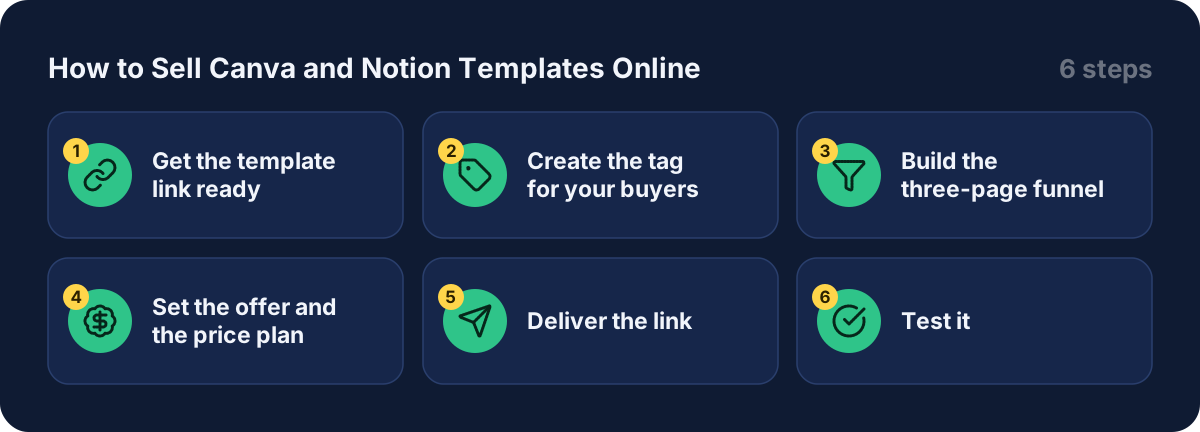
Step 1: get the template link ready
Open your Canva design or Notion page and create the share link that lets someone copy it into their own account. Both tools have a setting for this. The exact wording changes over time, so check Canva's or Notion's own help page rather than trusting a screenshot in a video.
Open the link in a private browser window, signed out, and make sure you are offered a copy, not just a view. This is the check most people skip, and it is the one that stops refund requests.
Step 2: create the tag for your buyers
Go to Contacts, then Tags, and create a tag such as "template buyers". It marks everyone who buys, and it is how Systeme.io knows what to deliver.

The orange arrow shows where to click.
One creator I watched said the free plan limited him to one tag, and the pricing page confirms it: 1 tag on the free plan.
Step 3: build the three-page funnel
Go to Sites, then Sales funnels, then Create. Name the funnel, choose the Sell goal and save. Add a step for your sales page and drag it to the top, so the order is sales page, order form, thank-you page.
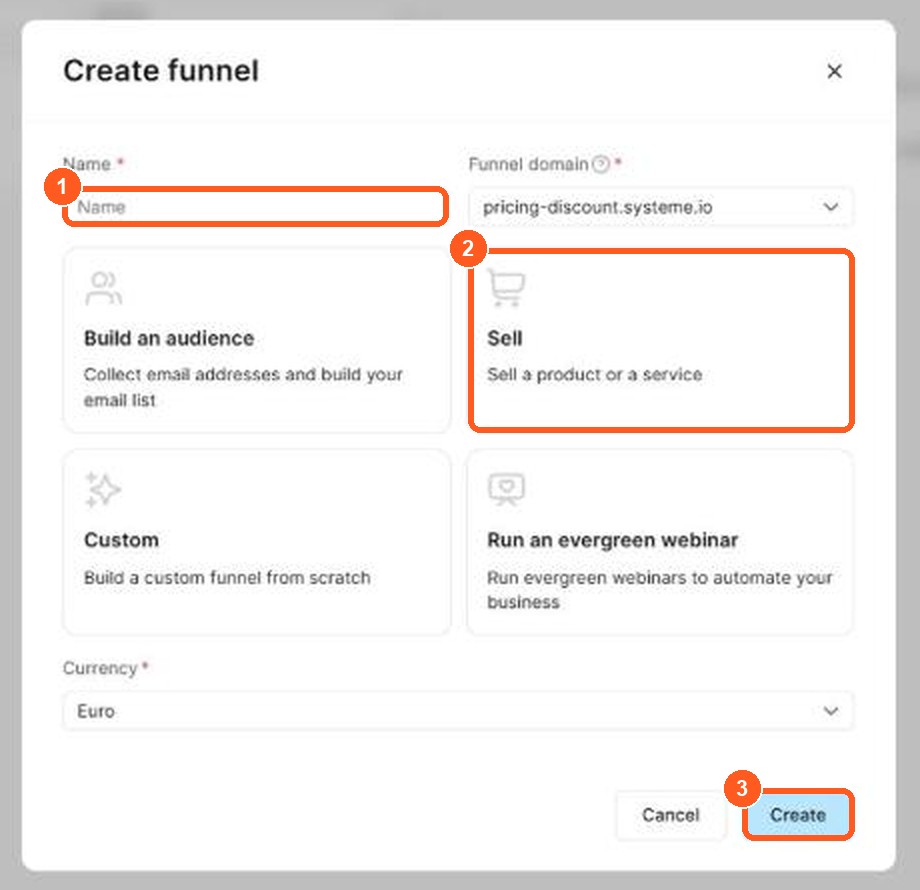
The orange numbers show what to click, in the same order as the steps.
On the sales page, replace the template photo with a clear preview of your design. Then check the buy button: it should send visitors to the next step of the funnel. For a full walk-through, see my guide to building a sales funnel.
Step 4: set the offer and the price plan
Open the order form step, choose Digital product as the offer type. In the Add digital product window, click Create new product, type a name (it is only for you) and click Add product. Next to Resources, click +, choose Tags, pick the tag from Step 2 and click Add resource.
Then add a price plan. Creators show three kinds in the interface:
| Plan | What it means | Fits a template when |
|---|---|---|
| One-time payment | A single charge | You sell one template |
| Subscription | A recurring charge, with an optional trial | You add new templates every month |
| Payment plan | A fixed number of instalments | You sell a large bundle |
Most template sellers use the first. Keep the order form short: creators remove fields such as company name and tax number to make buying quicker.
Step 5: deliver the link
Create an automation rule with the trigger New sale and the action Send email. In the email, paste the template link as a clickable button or text link. Save the email, then save the rule. Creators stress that an unsaved rule does not run.
Send the email from an address on your own domain, not the default system address. It helps the email reach the inbox instead of the spam folder.
You can also put the link on the thank-you page. Using both is a good safety net, because buyers who close the page still have the email.
Step 6: test it
Make a test purchase before you send traffic. Check that the email arrives, the link opens, and that you can make a copy of the template. Also check each page on a phone, because many buyers will arrive from one.
Add more revenue from the same buyer
A template is usually a low-priced offer, so an upsell after the purchase can lift your average order. For example, offer a bundle of ten templates, or a how-to video, on a page right after checkout. One creator suggested exactly this for an eBook, and the logic is the same for templates. My guide to building a sales funnel shows how to add the page.
What other creators say
After going through several tutorials, a few points came up again and again. In my view these are worth remembering:
- Sell a link, not a heavy file. The link keeps the delivery email small and simple.
- Preview the product honestly. Mockups of the real design reduce refund requests.
- Keep checkout short. Fewer form fields mean fewer abandoned orders.
- Think about the upsell early. A cheap template is where the bundle offer makes the most difference.
- Use your own email domain. It helps the delivery email arrive.
I could not confirm from the pricing page which plan includes order bumps and upsells. Check the Systeme.io pricing page before you design the funnel around them.
Mistakes to avoid
- Sharing view-only access. The buyer can look but cannot copy. Test the link signed out.
- Forgetting to save the rule. An unsaved automation never sends the email.
- Selling work you do not own. Check the licence terms of any fonts, photos or elements you built the template from, using Canva's or Notion's own terms.
- Not testing on mobile. Many buyers arrive from a phone.
- Assuming no fees at all. Systeme.io lists 0% transaction fees, but your payment provider still charges its own.
Sell Notion templates on Gumroad or in your own store
Many creators start by selling Notion templates on Gumroad, because it is quick to list a digital product there. Gumroad is a marketplace, so it handles the checkout, but it also sets its own fees and keeps the buyer relationship. If you sell Notion templates in your own store instead, you keep the customer's email and can send them new templates and your newsletter.
| Templates on Gumroad | Your own store | |
|---|---|---|
| Start selling | Very fast | A little setup |
| Customer email | Limited access | You keep it |
| Fees | Set by the platform | Depends on your plan |
| Control | Moderate | High |
To start selling, duplicate your finished Notion template as a public link, write a clear title and a short description, add two or three preview images, set a price and share the link. Selling without social media is possible if you rely on search and a small email list instead: write helpful pages that answer one question each, and offer a free mini template as a digital product sample. My guide to selling digital products without Shopify shows the store route, and my guide to selling ebooks online shows another product that works the same way.
Related guides
- How to sell eBooks online
- How to sell digital products without Shopify
- How to build a sales funnel from scratch
- How to create a lead magnet
- Systeme.io pricing
Get started
Open a Systeme.io account (Systeme.io affiliate link), build your funnel and put your first template on sale this week.
Frequently asked questions
Can I sell Canva templates for free?
Yes. The Systeme.io free plan includes 3 sales funnels and charges 0% transaction fees, so you only pay your payment provider's fee (pricing page, checked October 2026).
Can I sell Canva templates with Systeme.io?
Yes. Systeme.io does not care what the product is. You deliver a share link to your Canva design, the same way you would deliver any other digital product, through a tag and an automation rule.
Can I sell Notion templates the same way?
Yes. Notion templates are also shared as a link, so the delivery steps are the same as for Canva. Check Notion's own help page for the exact sharing setting that lets a buyer copy the page.
Should I attach the file or send a link?
For a Canva or Notion template, the link is the product, so send the link in the delivery email. The official help page gives 5 MB as the attachment limit, which also makes links the better choice for bigger files.
Do I need a course to deliver a template?
No. The order form resource list offers courses, course bundles, communities and tags. For a template you use a tag and an automation rule that sends the link.
Does Systeme.io take a cut of each sale?
The pricing page lists 0% transaction fees. Your payment provider, such as a card processor, still charges its own fees, so check theirs.